
Shotopus and Claude Desktop: let Claude see your screenshots
Connect Shotopus to Claude Desktop and Claude can read full page screenshots with their text, or ask to capture the tab you're on, with your approval.

MICHAL JAKUB WLOSIK
· 1 min read
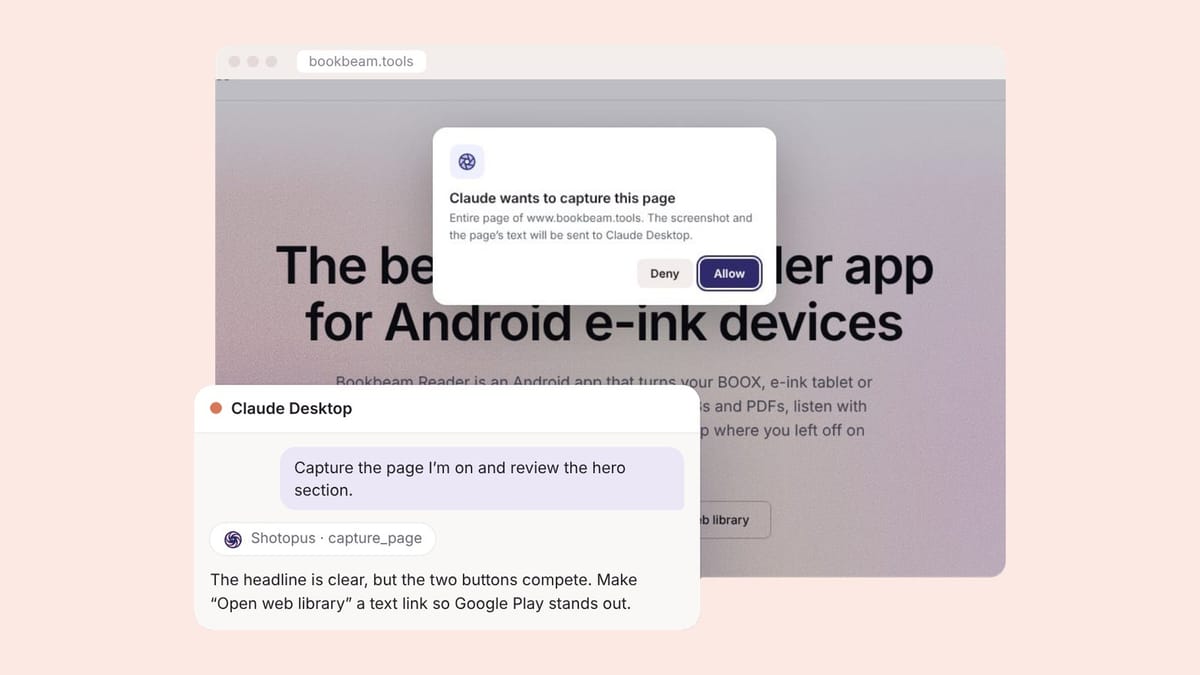
You can always paste a screenshot into a chat. But a full page screenshot is often too tall to read well as an image, and pasting one shot at a time gets old fast. Shotopus Pro connects to Claude Desktop so Claude can work with your screenshots directly.
What Claude can do
- Browse your History: list recent screenshots and open the one you mean.
- Read full pages: Claude gets the image and the page text Shotopus saved with it, so long pages are readable, not squeezed into one tiny picture.
- Ask for a new capture: Claude can ask Shotopus to capture the tab you're on, for example "review the hero section of the page I'm looking at".
You stay in control
Every capture Claude asks for shows an approval prompt on the page. Nothing is captured until you click Allow, and you can deny any request. The connection is off by default, and you can switch it off at any time in Settings.
It stays on your computer
Shotopus talks to Claude Desktop over a local connection on your own machine, secured with a pairing code. There's no Shotopus server in between. What you approve goes to Claude Desktop, where your Claude account's normal terms apply.
How to set it up
- Install Claude Desktop, if you haven't already.
- In Shotopus, open Settings → Claude and switch on the connection.
- Follow the steps on screen to add Shotopus to Claude Desktop and pair them.
- Ask Claude something like "Look at my last screenshot and list the broken links you see".
The Claude connection is part of Shotopus Pro, a one-time $29 purchase. Every new install includes a 7-day trial, so you can try it first.
Written by
Questions or thoughts? Share them below.