
How to take a full page screenshot in Chrome (3 ways)
Chrome hides a full page screenshot tool in DevTools, but there are faster ways. Here are three methods, from built-in to one click.

MICHAL JAKUB WLOSIK
· 2 min read
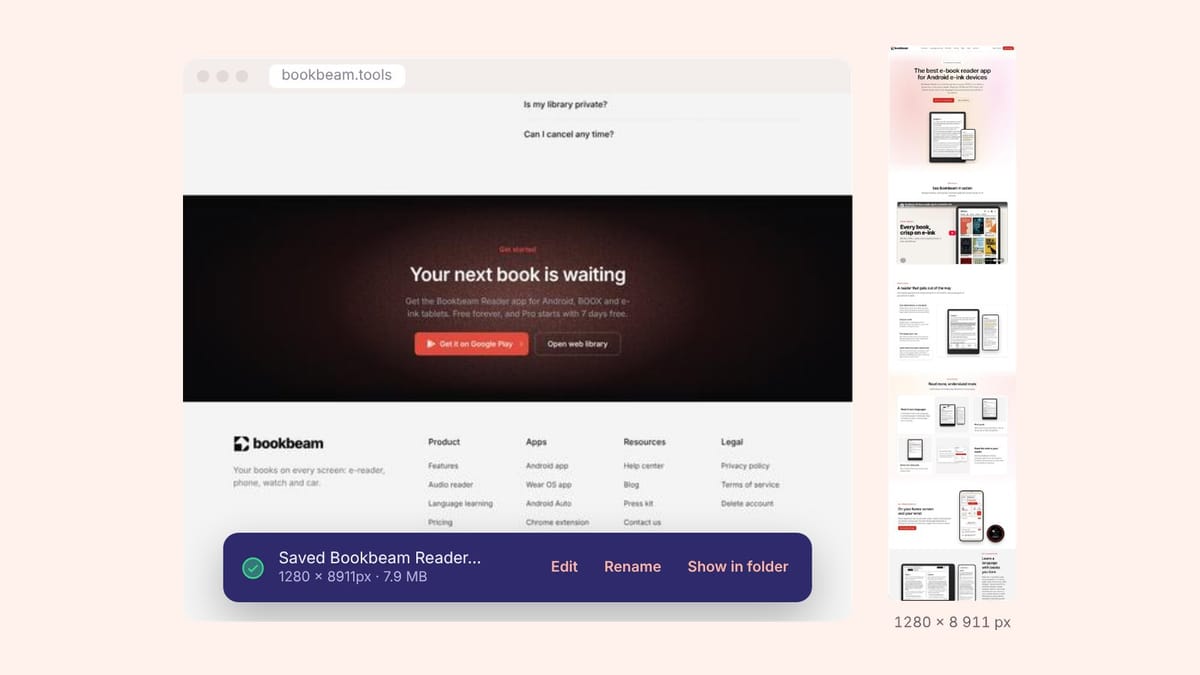
A normal screenshot only captures what fits on your screen. When you need the whole page, from the header down to the footer, you need a tool that scrolls and stitches. Here are three ways to do it in Chrome, from the built-in option to the quickest.
1. Chrome DevTools (built in, a bit hidden)
Chrome can capture a full page without any extension, but the command is tucked away in the developer tools:
- Open the page and press Ctrl+Shift+I (Windows, Linux) or Cmd+Option+I (Mac) to open DevTools.
- Press Ctrl+Shift+P (or Cmd+Shift+P) to open the command menu.
- Type screenshot and choose Capture full size screenshot.
Chrome saves a PNG to your Downloads folder. It's free and reliable on simple pages, but it has limits: there's no editor, sticky headers can sit in the wrong place, lazy-loaded images may be missing, and the steps are hard to remember when you need them in a hurry.
2. Your operating system's screenshot tool
Windows Snipping Tool (Win+Shift+S) and macOS screenshots (Cmd+Shift+4) are great for the visible part of the screen, but they don't scroll inside a browser tab. For a long page, you'd have to take several shots and stitch them together yourself.
3. One click with Shotopus
Shotopus is a free Chrome extension built for exactly this. Click its icon and choose Entire page, or press Alt+Shift+1. It scrolls the page, waits for lazy-loaded images, hides sticky headers so they don't repeat, and saves one clean image.
What you get beyond DevTools:
- An editor right after the capture: arrows, text, numbered steps, blur and crop.
- Other modes: visible area, a dragged selection, or a single element like a table or card.
- A searchable history, so you can find last week's screenshot without digging through Downloads.
- PDF export with Pro, with long pages split into printable pages.
Everything runs in your browser: no account, no uploads, no watermark.
Which one should you use?
For a one-off capture on a developer machine, DevTools does the job. If you take screenshots regularly, especially to annotate or share them, an extension saves you several steps every time.
Written by
Keep reading
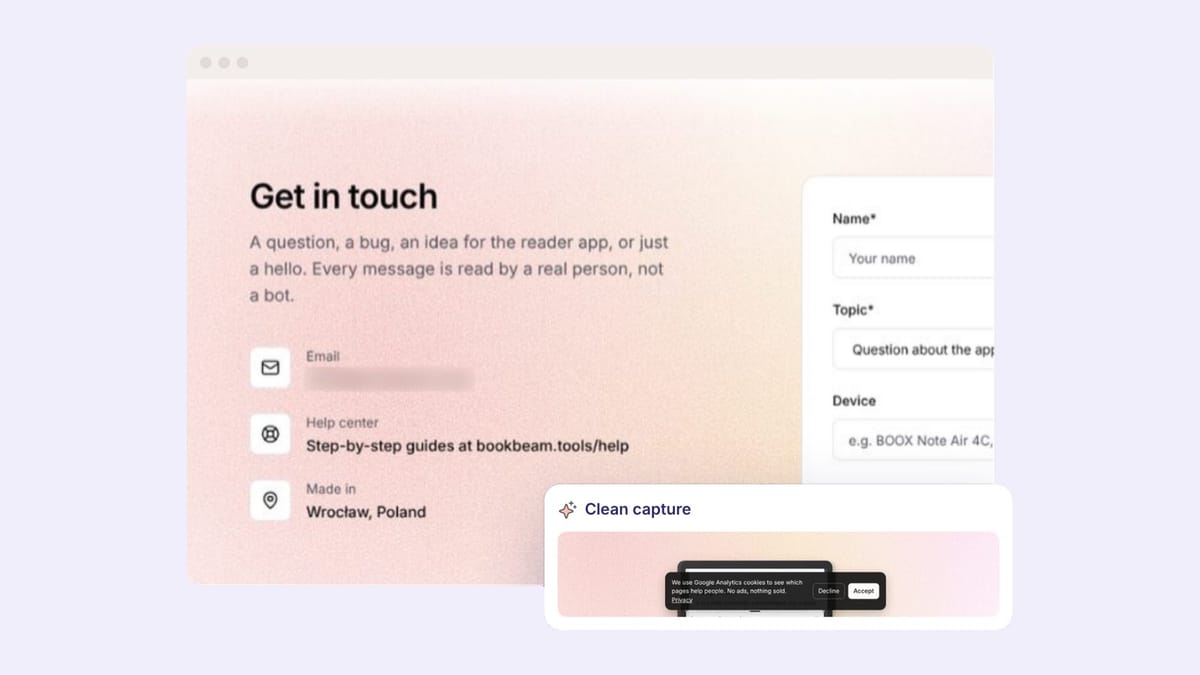
How to blur sensitive information in a screenshot before you share it
Emails, phone numbers and card details slip into screenshots all the time. Here's how to hide them properly, and why some blurs aren't safe.
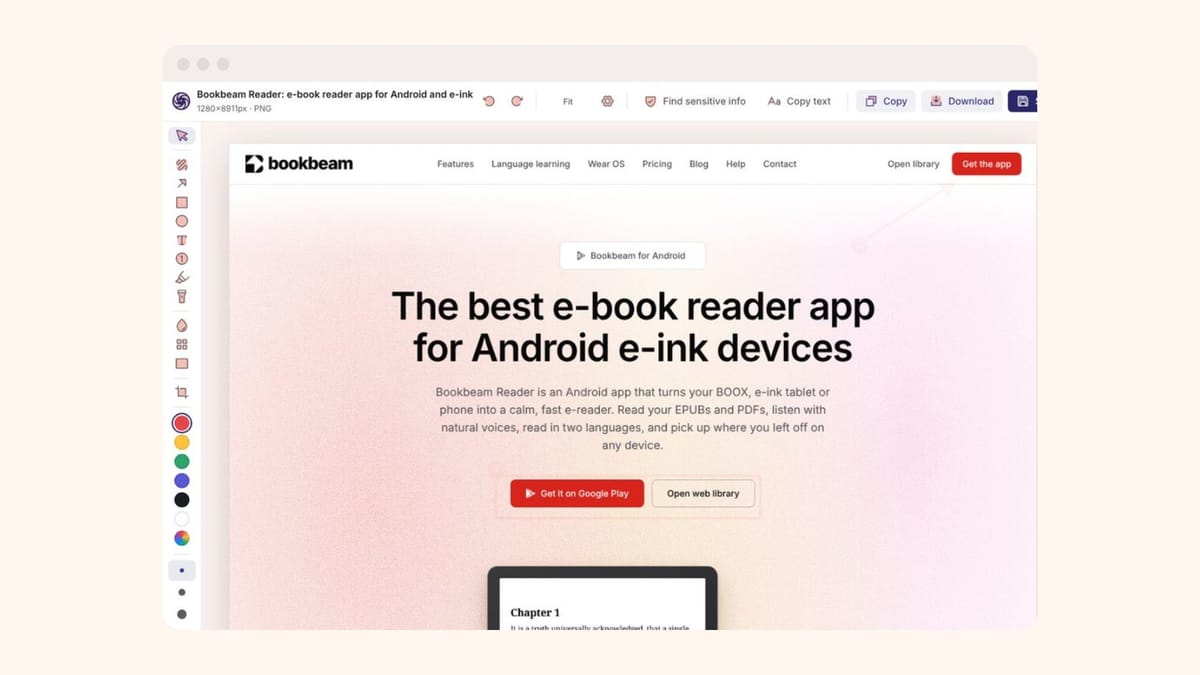
Why full page screenshots break (and how Shotopus fixes them)
Repeated headers, blank gaps and missing images: what goes wrong when a tool stitches a long page, and what Shotopus does about it.
Questions or thoughts? Share them below.